Amazon Merch on Demand: Set Up, Sign In and Upload in Bulk
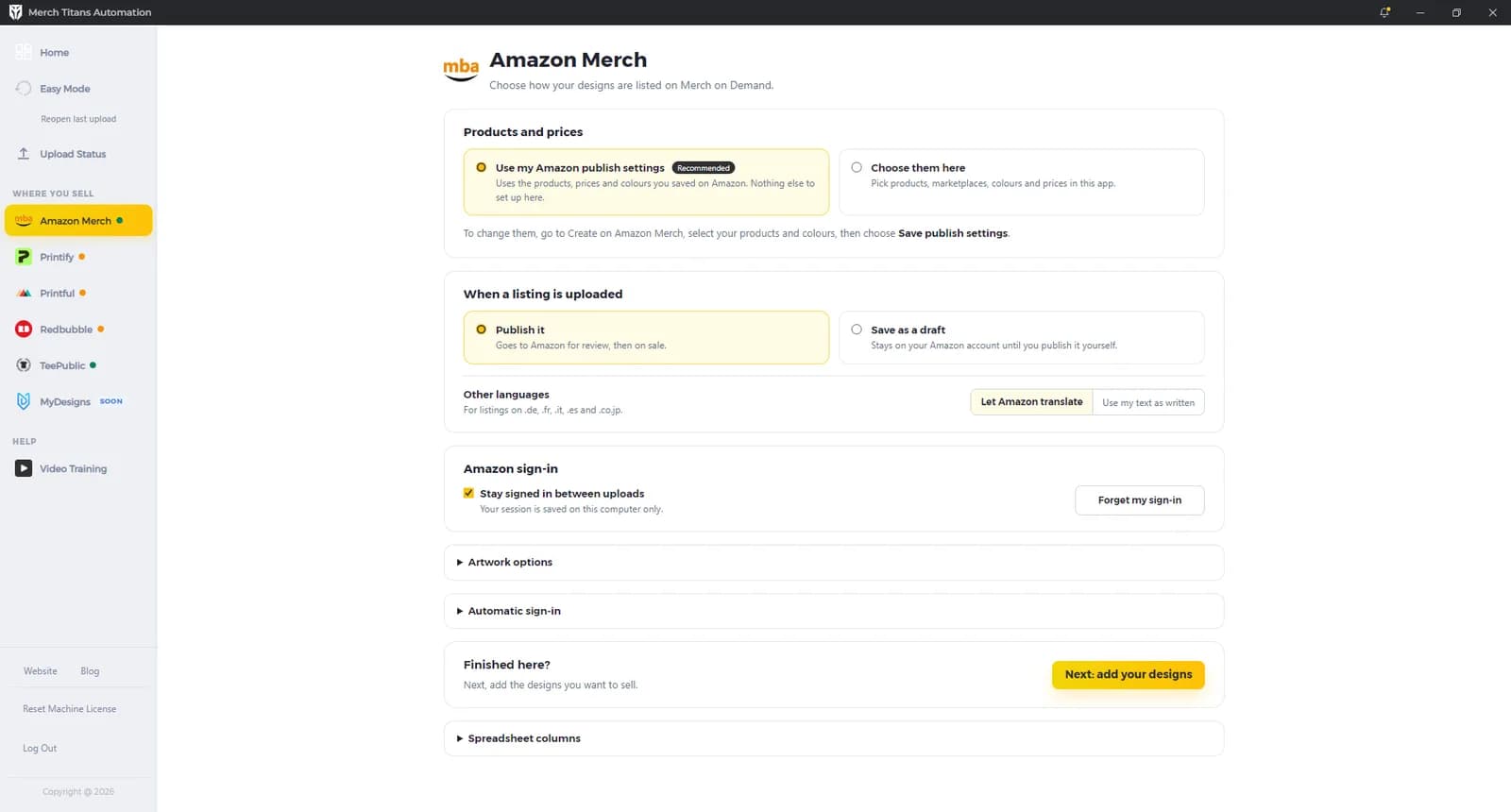
Merch Titans uploads to Amazon Merch on Demand in its own browser window, where you sign in to Amazon and can stay signed in between uploads. On the Amazon Merch page you choose whether to use your Amazon publish settings or pick products and prices in the app, and whether each listing is published or saved as a draft.
Updated 2026-11-06 · Markdown
Steps
- 1
Open the Amazon Merch page
Click Amazon Merch under Where you sell in the sidebar.
- 2
Choose products and prices
Keep Use my Amazon publish settings to use the products, prices and colors you saved on Amazon, or pick Choose them here to set them in the app.
- 3
Choose publish or draft
Under When a listing is uploaded, pick Publish it or Save as a draft. Under Other languages, pick Let Amazon translate or Use my text as written.
- 4
Check your sign-in options
Leave Stay signed in between uploads ticked so your Amazon session is saved on this computer. Automatic sign-in is optional, and the app marks it as not recommended.
- 5
Add your designs
Click Next: add your designs to open Easy Mode, or load a spreadsheet from Home.
- 6
Start the upload
Press Start upload on the upload screen. A browser window opens on your Merch on Demand dashboard.
- 7
Sign in to Amazon if asked
Sign in in that window: enter your email, then your password, and any code Amazon asks for. The upload carries on by itself once your dashboard loads.
- 8
Check the results
Each finished listing turns green and reads Published or Saved as draft. A failed listing reads Failed, with the reason beside it.
The Amazon Merch page sits under Where you sell in the sidebar. Its dot reads "Ready to upload" or "Needs setup" when you hover over it, and Home shows the same status, for example "Ready, using your Amazon publish settings".
Signing in to Amazon
Amazon uploads run in a separate browser window that Merch Titans opens. They don't use your everyday browser, so you sign in to Amazon inside that window.
- At the start of each upload the window opens your Merch on Demand dashboard.
- If you're not signed in, the window shows "Please log in to your account. You may refresh this tab, but do not close it." Close the message and sign in on Amazon's page. Amazon may ask for your email first, then show the password box on the next page.
- If Amazon asks for a code, a passkey or a puzzle, complete it in the same window. The app doesn't answer these checks and waits with no time limit.
- Once your dashboard loads, the upload starts. With Stay signed in between uploads ticked, the session is saved for next time. The page says "Your session is saved on this computer only."
- The Amazon window only opens when at least one Amazon listing is ticked on the upload screen.
Automatic sign-in
Automatic sign-in is a collapsed section near the bottom of the page. The app shows this warning there: "Not recommended. It stores your Amazon password on this computer, and Amazon may still ask you to verify. Staying signed in is safer."
Set Sign in automatically to Yes to show the Email and Password boxes. When Amazon asks you to sign in, the app then fills in your saved email, presses Continue if Amazon shows the password on a second page, types your password into the password box and submits. If it can't finish, for example because Amazon shows a code or puzzle page, the window says "Amazon needs you to finish signing in. Please sign in in this window. You may refresh this tab, but do not close it."
Your Amazon email and password are stored encrypted on this computer. They are never written into a settings backup file.
Signing out or switching accounts
- Forget my sign-in deletes the saved Amazon session and shows "Done".
- Unticking Stay signed in between uploads stops new sessions being saved, but a session saved earlier is still used. Press Forget my sign-in to stop using it.
- Forget my sign-in doesn't remove an email and password saved under Automatic sign-in. To remove them, set Sign in automatically to No. They are deleted the next time settings are saved, for example when you start an upload.
- Log Out in the sidebar also clears the saved Amazon sign-in.
Products and prices
Use my Amazon publish settings
This is the default, tagged Recommended: "Uses the products, prices and colours you saved on Amazon. Nothing else to set up here."
For each listing, the app reads which products and marketplaces are already ticked on Amazon's Create page and uses those. It doesn't type prices in this mode. To change the products, follow the note on the page: "To change them, go to Create on Amazon Merch, select your products and colours, then choose Save publish settings."
Choose them here
"Pick products, marketplaces, colours and prices in this app." This shows a table of Amazon's products, grouped under "T-shirts and tops", "Sweatshirts and outerwear", "Hats and bags" and "Accessories and home".
- The columns are .com, .co.uk, .de, .fr, .it, .es and .co.jp. Tick each product in the marketplaces you want. Click a column header to select or clear that whole column.
- Each row shows the product's print area in pixels, for example 4500 x 5400 px for the front of a Standard t-shirt. A cell is empty where Amazon doesn't offer that product in that marketplace.
- Several products start ticked, for example Standard t-shirt in all seven marketplaces. Check the ticks before your first upload, or use Show selected only to see what's on.
- A product tagged "Not on your Amazon create page" can't be selected.
Open Options on a product to set:
- Prices: one box per marketplace. "Leave blank to use Amazon's suggested price". A price outside Amazon's range turns the box red.
- Colours: "Leave all off to use Amazon's default".
- Background colour: replaces Colours for PopSockets, iPhone cases, Tote bag and Throw pillows. The default is #276cb8.
- Fit types: Men, Women, Youth, Girls and Adult unisex. "Leave all off to use Amazon's default".
- Design size: a percentage. "Leave blank to use Amazon's automatic size".
The price ranges come from Amazon's product data, captured on 2026-11-04. Some .com examples:
| Product | .com price range | Amazon's suggested price |
|---|---|---|
| Standard t-shirt | $13.38 to $35 | $18.99 |
| Premium t-shirt | $19.99 to $24.99 | $20.99 |
| V-neck t-shirt | $15.18 to $35 | $18.99 |
| Long sleeve t-shirt | $17.68 to $40 | $21.99 |
| Sweatshirt | $25.15 to $33.99 | $31.99 |
| Pullover hoodie | $25.04 to $35.99 | $31.99 |
| Zip hoodie | $26.99 to $37.99 | $33.99 |
| PopSockets | $11.72 to $20 | $14.99 |
When a listing is uploaded
- Publish it (default): "Goes to Amazon for review, then on sale."
- Save as a draft: "Stays on your Amazon account until you publish it yourself."
Easy Mode has a shortcut for the same setting: On Amazon: with Publish or Save as draft, shown when Amazon Merch is on. Changing it there changes this page too. In draft mode, Amazon rows on the upload screen say Save draft instead of Publish.
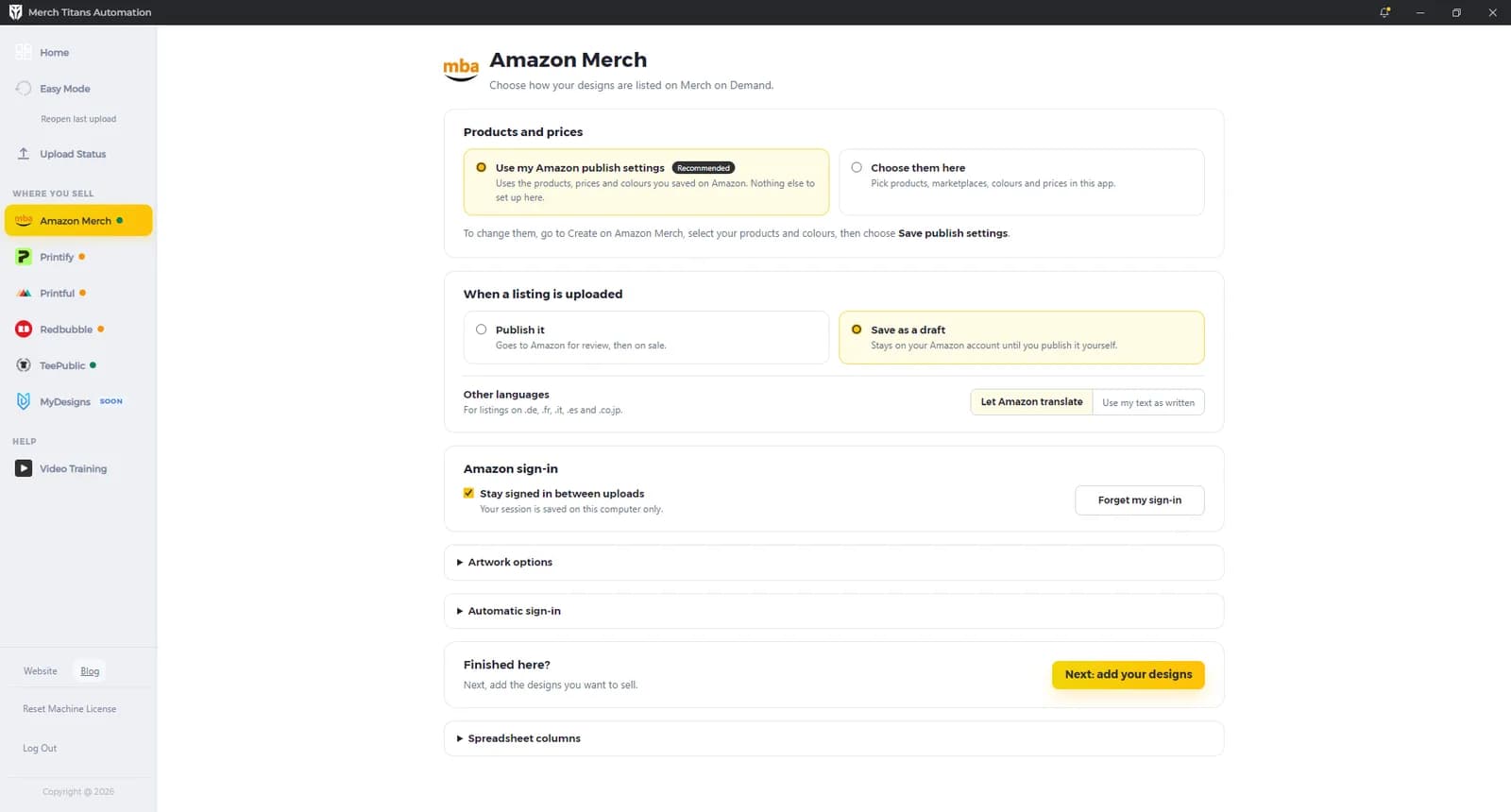
Other languages applies to listings on .de, .fr, .it, .es and .co.jp:
- Let Amazon translate (default).
- Use my text as written: the app puts your English title, brand, bullets and description into the German, French, Italian, Spanish and Japanese fields as they are. Nothing is translated.
Artwork options
This collapsed section has three options, all off by default.
- Trim empty space: "Crops transparent edges so the design fills hats, bags, mugs and other non-clothing products." The app crops the transparent edges, adds 100 px of padding on each side and uses the cropped file for non-clothing products.
- Print on both sides: "Repeats the design on both sides of tumblers, mugs and water bottles." Tumbler and Water Bottle get a 3000 x 1400 file with the design twice, and Ceramic Mug gets a 2700 x 1050 file. This option also trims empty space on all non-clothing products, even with Trim empty space off.
- Print zip hoodies on the back: "Puts the design on the back of the zip hoodie instead of the front."
The Sport Sun Visor always gets your design scaled to fit its 1500 x 675 print area.
Spreadsheet columns
"Only needed for spreadsheets you upload yourself. Easy Mode sets these for you." Column A is always the design's file path. The defaults are:
| Field | Default column |
|---|---|
| XLSX Title Column | B |
| XLSX Description Column | C |
| XLSX Brand Column | F |
| XLSX Bullet 1 Column | G |
| XLSX Bullet 2 Column | H |
Columns with headers like the blank template's, such as "Title" or "Amazon Merch Brand", are matched automatically. See Spreadsheet upload.
When your Amazon settings are saved
The same applies to an email and password typed under Automatic sign-in: they are stored only when settings are saved. See Save and load settings.
What happens during an upload
- Checks first. Before anything opens, the app checks your listings and settings. Problems show in "Please fix these spreadsheet rows" or "Please fix these settings", and nothing uploads until you fix them.
- One listing at a time. Amazon uploads run one after another in a single tab. The row reads "Publishing" while it works.
- For each listing, the app opens Amazon's Create page, picks the products (from your table, or from your Amazon publish settings), uploads the design once and fills in the title, brand, bullets and description. It sets the language choice, then applies the artwork options, design size and background colors to each product. In Choose them here it also sets your colors, fit types and prices. Finally it publishes the listing or saves it as a draft.
- A short pause. The app waits a random 5 to 10 seconds between listings.
- Results. A finished row turns green and reads "Published", or "Saved as draft". A failed row reads "Failed" with the reason beside it, and a message pops up: "Listing N was not uploaded." followed by the reason.
- Time limit. A listing that takes more than 20 minutes is skipped, and the run carries on in a fresh tab.
- The browser window closes when every listing is done. Follow progress on Upload Status.
Limits and checks
| Field | Minimum, checked before upload | Maximum |
|---|---|---|
| Title | 3 characters | 60 characters |
| Brand | 3 characters | 50 characters |
| Bullet 1 and Bullet 2 | none, optional | 256 characters each |
| Description | 75 characters, or leave it empty | 2000 characters |
- Text over the maximum is cut without a message. In the description, line breaks and repeated spaces become single spaces, and em dashes become hyphens.
- In Easy Mode, the brand is required when Amazon Merch is on: "Design N: Amazon Merch Brand is required".
- The app doesn't check image size, resolution or file size before an Amazon upload. If Amazon rejects the file, the app tries again (see "Amazon kept failing to take this design." below).
- The app doesn't read or enforce your Amazon tier, design limit or daily upload limit.
- If a product you chose isn't on your Amazon Create page, or is unavailable there, that product is skipped without a message.
- Amazon uploads don't check your text for rejected or banned words. Run Check trademarks in Easy Mode before you upload; it also flags words from a built-in list.
Uploading the same listings again
A listing already published in the last 180 days, matched on the design's file name and all its text, starts unticked with a green border on the upload screen.
Troubleshooting
- "Please log in to your account. You may refresh this tab, but do not close it.": the Amazon window needs you to sign in. Sign in there and leave the window open.
- "You were logged out! Please log in to continue!": Amazon signed you out during the run. Sign in again in the same window. The app retries the listing.
- "Amazon needs you to finish signing in. Please sign in in this window. You may refresh this tab, but do not close it.": automatic sign-in couldn't finish. Complete the sign-in by hand in that window.
- "No products are saved in your Amazon publish settings. Choose them on Amazon's Create page and select Save publish settings.": on Amazon Merch, open Create, select your products and colors and choose Save publish settings. Or switch to Choose them here.
- "Choose at least one product": in Choose them here, tick at least one product in at least one marketplace.
- A price message such as "Standard t-shirt .com price must be 13.38 to 35": open Options for that product and enter a price in range, or leave it blank for Amazon's suggested price.
- "Title needs at least 3 characters", "Brand needs at least 3 characters" or "Description needs at least 75 characters, or leave it empty": fix that row in your spreadsheet or in Easy Mode.
- "Amazon won't accept this listing. Check the" followed by a field, such as "title (3 to 60 characters)": fix the named field and upload that listing again.
- "Amazon won't accept this listing. Check its prices, colours and artwork.": check the product's prices, colors and design on the Amazon Merch page, then try again.
- "Amazon kept failing to take this design.": Amazon didn't take the design file after repeated tries, including in fresh tabs. Check the file by uploading it on Amazon's Create page yourself, then try again.
- "This listing took over 20 minutes, so it was skipped.": check the listing on Amazon before you retry it, so you don't create a duplicate.
- "The upload browser was closed, so the upload stopped.": shown in "Amazon Merch upload stopped". Leave the Amazon window open until the run ends, then start again with Only unfinished.
- A listing still reads "Publishing" after the run ends: check it on Amazon before you upload it again.
For errors that apply to every marketplace, see Troubleshooting. To upload with the guided flow, see Easy Mode; to upload from an XLSX file, see Spreadsheet upload.
Questions
Does Merch Titans use my own browser for Amazon uploads?
No. It opens its own browser window for Amazon Merch on Demand. You sign in to Amazon there, and with Stay signed in between uploads ticked your session is saved on this computer for the next upload.
Can Merch Titans save Amazon Merch listings as drafts?
Yes. Choose Save as a draft under When a listing is uploaded, or Save as draft next to On Amazon in Easy Mode. Drafts stay on your Amazon account until you publish them yourself.
Does Merch Titans handle Amazon two-step verification?
No. If Amazon asks for a code, a passkey or a puzzle, complete it yourself in the Amazon window. The app waits, with no time limit, until your Merch dashboard loads and then carries on.
Does Merch Titans know my Amazon tier or daily upload limit?
No. The app does not read or enforce your Amazon tier, design limit or daily limit, so keep each upload within what your account allows.
Why did my Amazon Merch settings go back after I restarted the app?
Changes on the Amazon Merch page are saved when you start an upload or change a setting on another marketplace page. If you close the app before either happens, the Amazon changes are lost.