Printful: Copy Your Products With New Designs in Bulk
Merch Titans uploads to Printful by copying a product you already sell in a Printful store and putting your new design on it. You connect with a Printful private token on the Printful page, choose a store and the products to copy, then sign in to printful.com in the browser window the app opens when the upload starts.
Updated 2026-11-06 · Markdown
Steps
- 1
Set up a product in Printful
In Printful, set up a product in your store the way you want every copy to look, with its colors, sizes and mockups.
- 2
Create a Printful token
On the Printful page in Merch Titans, click Open Printful, then Tokens. Create a Private token with Account access and the permissions View all store information and View all store products, and copy it straight away.
- 3
Connect your account
Paste the token in the Paste your token box and click Connect.
- 4
Choose a store and products
Pick your store in the Store dropdown, click Add a product and choose the products to copy.
- 5
Set up each listing
Choose a Price, a Design placement and a Style, and tick what to include, such as Printful's product details.
- 6
Start the upload
Click Next: add your designs, add them in Easy Mode or a spreadsheet, then press Start upload.
- 7
Sign in to Printful
If Printful asks you to sign in, do it in the browser window that opens. The upload carries on by itself once you're in.
How Printful uploads work
Merch Titans doesn't build Printful products from scratch. For each design, it duplicates a product you already have in your Printful store, swaps in your new design, and fills in the title, description, tags and price.
It uses two connections:
- A Printful private token, pasted once on the Printful page. The app uses it to read your stores and products.
- A sign-in to printful.com in a browser window the app opens during the upload. That window does the copying.
There is no draft or publish setting for Printful. The note under the Store dropdown tells you what happens for the store you chose:
- Etsy stores: "Printful saves products to Etsy as drafts. Publish them from Listings in Etsy's Shop Manager, where you can tick them all at once."
- Other stores: "Products go live on this store as soon as they're sent."
Before sending to a store where products go live, the app asks "Send to your store?" with the number of live listings and the store name, and buttons Cancel and Continue.
Connecting your Printful account
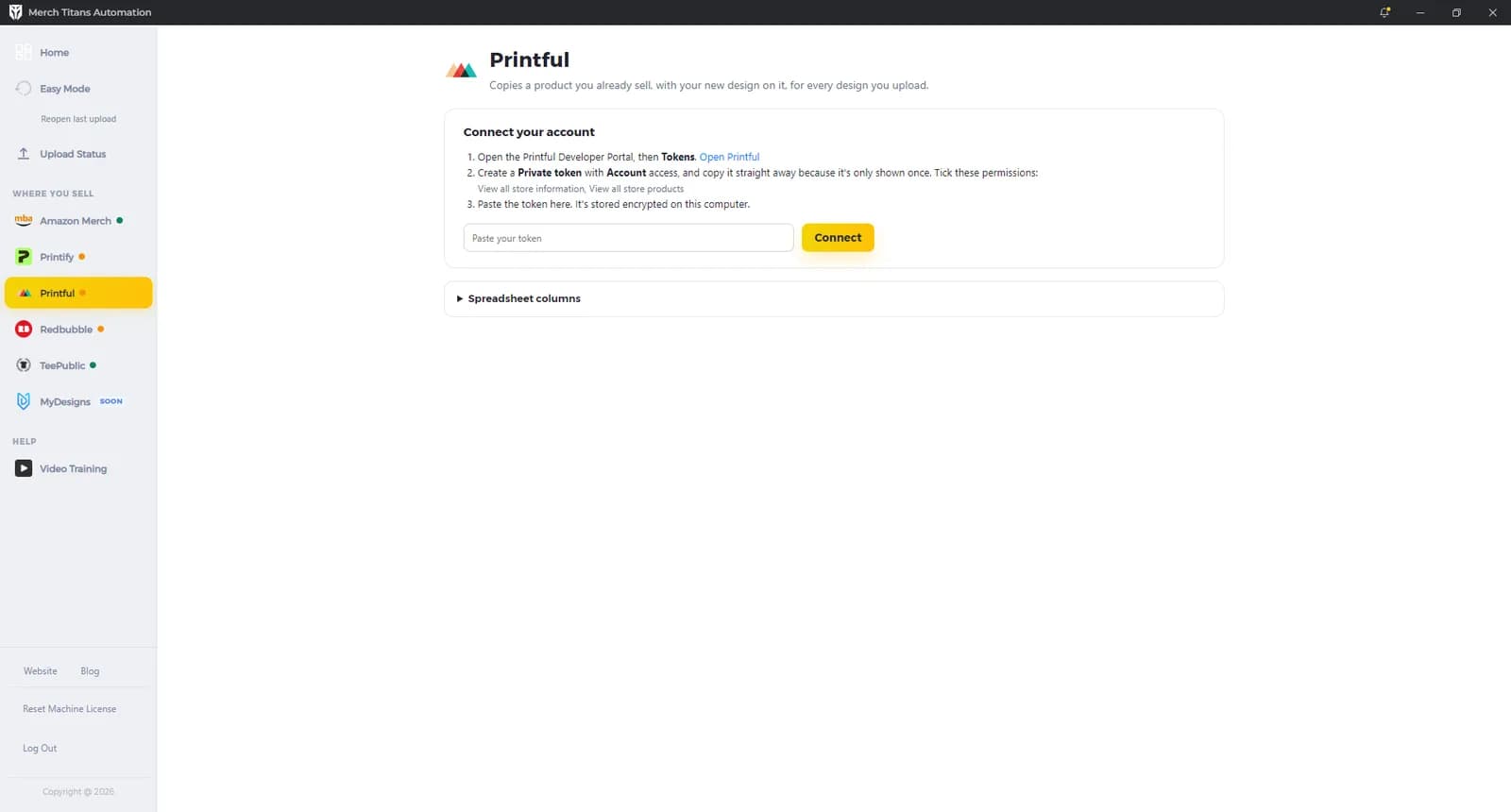
The Connect your account card lists three steps:
- "Open the Printful Developer Portal, then Tokens." The Open Printful link opens it in your browser.
- "Create a Private token with Account access, and copy it straight away because it's only shown once. Tick these permissions:" View all store information, View all store products.
- "Paste the token here. It's stored encrypted on this computer."
Paste the token in Paste your token and click Connect (or press Enter). The app checks it with Printful and saves it only if Printful accepts it. The token is never written into a settings backup file.
Signing in to printful.com
When an upload starts, the app opens your Printful dashboard in its own browser window. If Printful asks you to sign in, Merch Titans shows "Printful: please sign in, in the browser window that just opened." and the Printful page shows "Merch Titans: please sign in to Printful here. The upload carries on by itself once you're in." Sign in there. The sign-in is saved, encrypted, on this computer for next time.
Replace token and Disconnect
Once connected, the Your store card has Refresh, Replace token and Disconnect.
- Replace token keeps your upload history, so nothing gets made twice. If none of the new token's stores match the stores seen before, the app treats it as a different account and clears the history.
- Disconnect asks first. It removes your token and upload history from this computer. Your products stay in Printful, but uploading the same designs afterwards makes new ones.
Logging out of Merch Titans with Log Out leaves your Printful token on this computer. To disconnect, click Disconnect on the Printful page. Disconnect doesn't remove the printful.com sign-in saved for the upload window, and the Printful page has no Forget my sign-in button. Log Out clears the saved marketplace sign-ins.
Settings on the Printful page
The cards below only appear once your account is connected.
Your store
Pick a store in the Store dropdown. Each option shows the store name and type. Stores that can't copy products show "can't copy products" and can't be chosen. The same dropdown appears on Printful's card in Easy Mode's Where do you want to sell? step.
Products to copy
"Each design you upload is made into every product here, keeping its colours, sizes and mockups. Set one up in Printful the way you want it first."
- Click Add a product. If no store is chosen, the app says "Please choose a store first."
- Search with Search this store's products. Results come 20 at a time, with Show more for the next page.
- Click a product to add it. There are no options to set: colors, sizes and mockups come from the Printful product.
- Each saved product shows "N colour and size combinations" and a Remove button.
If the store has no products, the picker says "This store has no products yet. Add one in Printful, then come back."
How each listing is set up
- Price: Profit per sale (default, $8.00 to start) or Fixed price ($24.99 when you switch). The minimum is $1.00.
- Profit per sale: "Added to Printful's cost for each size, then rounded up to .99. Your store's own fees come out of this."
- Fixed price: "One price for every size. It has to be above Printful's cost for the largest size, or that listing won't be sent."
- Design placement: Top of the print area (default) or Centred. Both also center the design from side to side.
- Style: Unisex (default), Men or Women.
- Also include:
- Printful's product details (ticked by default): "Fabric, sizing and care, added under your own description."
- Size guide: "Added to the listing as an image."
- Free shipping: "Customers don't pay shipping, and Printful charges you for it instead."
- EU safety information: "Printful says this is mandatory if you sell in the EU." Ticking it adds Company name, Email and Postal address. "Printful adds these to each listing as the manufacturer's details. That's you, as the seller. Printful fills in its own EU representative."
These choices, including your company name, email and address, are saved with your settings, and in any settings backup file you save from Home.
Spreadsheet columns
Only needed for spreadsheets you upload yourself; Easy Mode sets them for you. Column A is always the design's file path. The defaults are Title B, Description C and Tags D. Printful has no brand or bullet columns. See Spreadsheet upload.
What happens during an upload
- Checks first. Every listing needs a title and description, and the title must fit your store's limit. You need a store, at least one product, a price of at least $1.00, and your EU details if that box is ticked.
- Browser windows. The app opens up to 3 Printful windows. With more than one listing it says "Printful: N windows are opening. Leave them open and don't minimize them until the upload finishes."
- For each listing and product, the app finds the product in your store and clicks Duplicate. It removes the old design, uploads yours to Printful's file library and applies it, then positions it. It keeps the product's chosen mockups, then sets the title, description, tags, style and the boxes you ticked. On the pricing page it reads Printful's cost for each row, types your price, checks it, and submits to your store.
- Safe retries. If a step stalls before the final submit, the app retries the whole copy once. Nothing is sent to your store until the last step.
- Confirmation. The app then waits up to 5 minutes for the new product to appear in Printful.
- Links. Each finished row gets View in Printful. Etsy rows also get Review draft when Etsy has a listing number.
- Row labels. "Sending" while working, then "Sent as draft" for Etsy stores or "Published" for others.
- Time limit. A listing that takes more than 20 minutes is skipped.
- At the end: "Printful: N of N listings finished."
Limits
- Design files: PNG or JPG, and the file must exist on your computer. Printful must finish taking the file within 3 minutes.
- Resolution: Printful must show at least 150 DPI for your design on the product.
- Title: your store's limit, checked before the upload. Etsy titles can be up to 140 characters.
- Description: required.
- Tags: at most 13, after your store's own tag rules.
- Price: at least $1.00, and above Printful's highest cost in each row.
Running the same listings again
Troubleshooting
- "Please paste your Printful token first.": paste the token before you click Connect.
- "Printful didn't accept that token. Check you copied all of it, or create a new one.": copy the whole token again, or create a new one.
- "Printful didn't accept your token. Please paste a new one in the Printful settings.": create a new token and use Replace token.
- "Your Printful token doesn't have permission for this. Please create one with the listed permissions.": create a token with both permissions and use Replace token.
- "Printful stopped accepting your saved token. Paste a new one below. Your upload history is kept, so nothing gets made twice.": paste a new token in the box shown.
- "Add a product to copy", "Enter a price or profit of at least $1.00" or "Add your company name, email and postal address for the EU safety information" in "Please fix these settings": finish that setting on the Printful page.
- "Printful can't copy products in" followed by your store name: choose another store.
- "Printful: please sign in, in the browser window that just opened.": sign in to printful.com in that window. The upload carries on by itself.
- "Printful signed you out, so the upload stopped. Please start it again and sign in.": start the upload again and sign in when asked.
- "The upload browser was closed, so the upload stopped.": leave the Printful windows open until the run ends, then start again.
- "Printful needs a PNG or JPG design, and" followed by the file name: save the design as PNG or JPG and check the file exists.
- "couldn't be found in your Printful store. It may have been deleted." after a product name: remove that product under Products to copy and add one that exists.
- "This design prints at only N DPI here, too low to look good. It needs to be larger.": use a larger design file.
- "Printful didn't finish taking" followed by the file name, then "It may be too large or the wrong type.": check the file's size and type.
- "Printful got stuck on" followed by a step, then "Running this row again won't make a duplicate.": run that listing again.
- "The price of" followed by your price, then "isn't above Printful's cost": raise your price or profit.
- "Printful hasn't added this after 5 minutes. Check your store. Running this again won't make a duplicate.": check your store, then run it again if needed.
- "This listing took over 20 minutes, so it was skipped.": run that listing again.
For errors that apply to every marketplace, see Troubleshooting. To upload with the guided flow, see Easy Mode; to upload from an XLSX file, see Spreadsheet upload. Follow progress on Upload Status.
Questions
Does Printful save my listings as drafts or publish them live?
It depends on the store, because the app has no draft or publish setting for Printful. For Etsy stores the app notes that Printful saves products to Etsy as drafts. For other stores the app notes that products go live as soon as they are sent, and asks you to confirm first.
Why do I sign in to Printful when I already pasted a token?
The token lets Merch Titans read your stores and products. Each listing is made in Printful's dashboard in a browser window the app opens, so you also sign in to printful.com there.
Can I choose colors and sizes for Printful in Merch Titans?
No. Colors, sizes and mockups come from the Printful product you copy. Set it up in Printful first, then add it under Products to copy.
Which Printful stores can I upload to?
Any Printful store that can copy products. Stores that can't are marked can't copy products in the Store dropdown and can't be chosen, and the app treats Squarespace, ShipStation and Big Cartel stores this way.