Redbubble: Upload Designs Using Your Own Work as a Template
Merch Titans uploads to Redbubble by copying one of your existing works, your template, with each new design on it. Choose the template with Choose from my works on the Redbubble page, set products and who can see each work, and sign in to Redbubble in the browser window the app opens. There is no draft step: Only me (private) keeps new works hidden.
Updated 2026-11-06 · Markdown
Steps
- 1
Set up a template on Redbubble
Upload one work on Redbubble with the design size, position and products set the way you want for every upload.
- 2
Open the Redbubble page
Click Redbubble under Where you sell in the sidebar.
- 3
Choose your template
Click Choose from my works, sign in to Redbubble in the window that opens if asked, and pick the work. For an older work, paste its link under Or paste a link to the work.
- 4
Choose products
Keep Use the products in my template, or pick Choose which products to turn on and tick the products you want.
- 5
Set listing options
Choose the Main product shown in your shop, who can see each work, and whether it is mature content.
- 6
Start the upload
Click Next: add your designs, add them in Easy Mode or a spreadsheet, then press Start upload.
- 7
Sign in when asked
The first time, sign in to Redbubble in the browser window that opens. The upload carries on by itself once you're in.
Redbubble uploads copy a work you already have on Redbubble. That work, your template, decides the design's size and position and which products are on. Merch Titans puts each new design on a copy of it and fills in the title, tags and description.
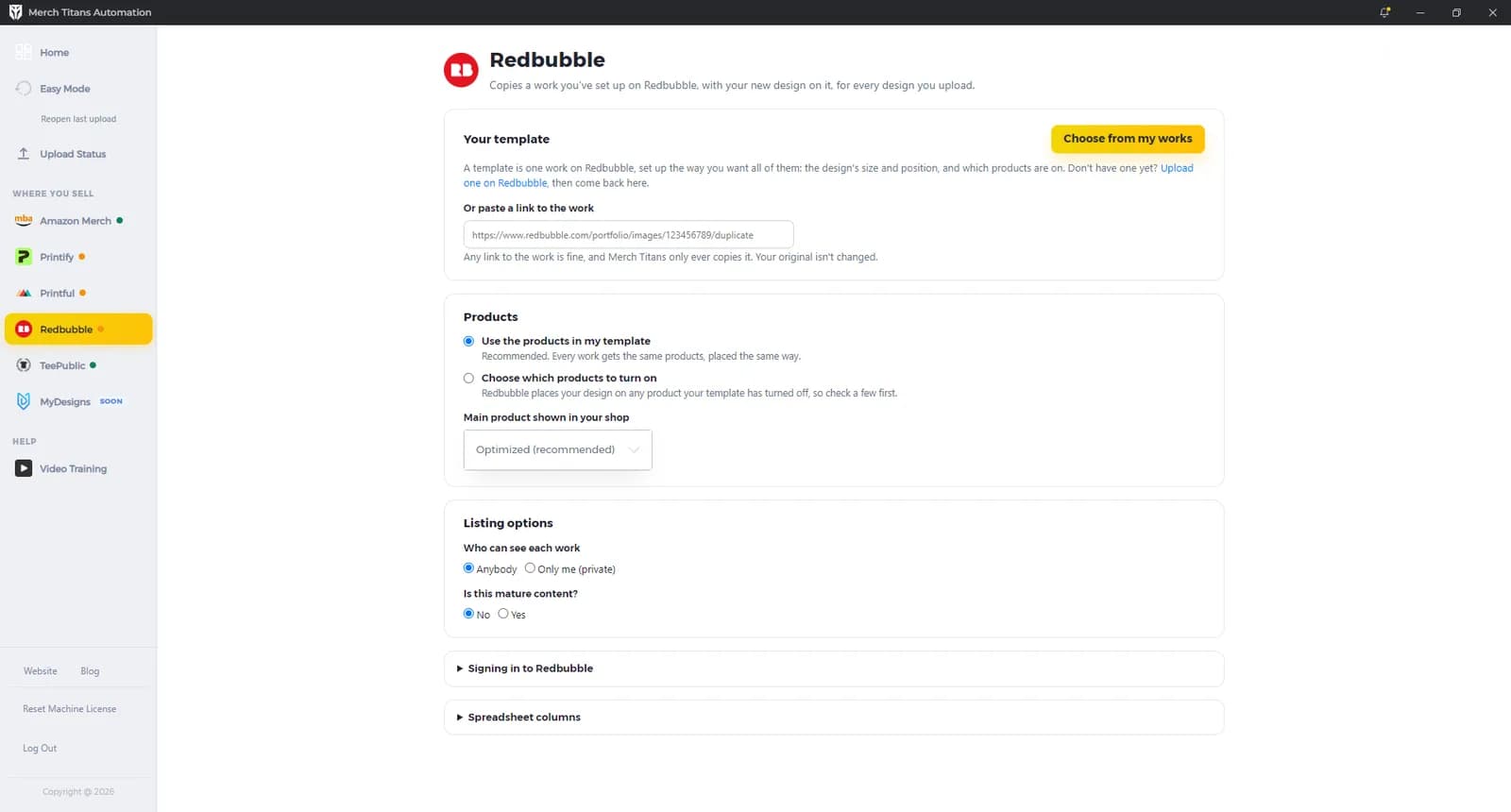
Your template
"A template is one work on Redbubble, set up the way you want all of them: the design's size and position, and which products are on." If you don't have one yet, use the link Upload one on Redbubble, then come back.
Choose from my works
Click Choose from my works. The app says "A browser window is opening to read your works. If it asks you to sign in to Redbubble, please do that there." It reads your newest works, closes that window and shows "Your N newest works. Choose the one to copy." Search with Search your works, then pick one.
The chosen work shows its title, "Each design you upload is made as a copy of this work." and a Remove button.
Or paste a link to the work
For an older work, open it on Redbubble, copy the link from the address bar and paste it under Or paste a link to the work. "Any link to the work is fine, and Merch Titans only ever copies it. Your original isn't changed."
Products
- Use the products in my template (default): "Recommended. Every work gets the same products, placed the same way."
- Choose which products to turn on: "Redbubble places your design on any product your template has turned off, so check a few first."
In Choose which products to turn on, 22 product types appear in five groups, all ticked to start, with Select all and Clear all:
| Group | Products |
|---|---|
| Clothing | Standard Print Clothing, Large Print Clothing, Graphic T-Shirts, A-Line Dresses, Hats, Socks |
| Stickers and wall art | Stickers & Magnets; Prints, Cards & Posters; Pin Buttons |
| Phone and desk | Phone Cases; Pouches, Laptop Skins & Sleeves; Desk Mats; Mouse Pads |
| Home and gifts | Pillows & Totes; Throw Blankets & Tapestries; Mugs; Acrylic Blocks & Coasters; Aprons; Jigsaw Puzzles |
| Stationery and bags | Spiral Notebooks, Hardcover Journals, Cotton Tote Bags |
Main product shown in your shop sets the product shoppers see first. The default is Optimized (recommended). If you chose a product Redbubble no longer offers, it falls back to Optimized.
Listing options
- Who can see each work: Anybody (default) or Only me (private).
- Is this mature content?: No (default) or Yes.
Redbubble uploads have no draft step. Every listing is saved as a work. Only me (private) is the way to keep new works off public view. In private mode, rows on the upload screen say Upload privately, and finished rows say "Uploaded privately".
The Redbubble page has no prices, markups, colors or per-product placement. Placement and product setup come from your template.
Signing in to Redbubble
"The first time you upload, a browser window opens for you to sign in. Merch Titans never sees your password."
- If you're not signed in, Merch Titans shows "Redbubble: please sign in, in the browser window that just opened." and the Redbubble page shows "Merch Titans: please sign in to Redbubble here. It carries on by itself once you're in." The app waits until you've signed in.
- If Redbubble checks the browser, the page shows "Merch Titans: Redbubble is checking this browser. If it asks you anything, please answer here. The upload carries on by itself." The app waits up to 10 minutes and never answers the check for you.
- Stay signed in on this computer is ticked by default. The sign-in is saved, encrypted, on this computer.
- To sign out or switch accounts, open Signing in to Redbubble and click Forget my sign-in, then sign in with the other account on the next upload. Unticking Stay signed in on this computer only stops new sign-ins being saved; a saved one is still used until you click Forget my sign-in.
- Log Out in the sidebar also clears every saved marketplace sign-in.
Spreadsheet columns
"Only needed for spreadsheets you upload yourself. Easy Mode sets these for you." Column A is always the design's file path. The defaults are Title B, Description C and Tags D, and headers named "Title", "Description" and "Tags" are matched automatically. See Spreadsheet upload.
What happens during an upload
- Checks first. Every listing needs a title, description and tags, and you need a template.
- One browser window. The app signs in, then works through your listings one at a time. Each row reads "Publishing" while it works.
- For each listing, the app opens your template's copy page, uploads the design and waits up to 2 minutes for Redbubble's preview. It types the title, replaces the copied tags with yours (main tag first) and types the description, checking that Redbubble kept the title and description.
- Products. In the default mode, products stay exactly as your template has them. In Choose which products to turn on, the app turns each group on or off to match your ticks.
- Last details. It sets the main product, mature content and who can see the work, and ticks Redbubble's rights declaration.
- A paced save. The app waits a random 12 to 21 seconds before saving, because Redbubble watches for uploads that come too quickly. It then waits up to 5 minutes for Redbubble to confirm.
- Results. A finished row reads "Published", or "Uploaded privately", with a View on Redbubble link. A failed row reads "Failed" with the reason, and the run carries on in a fresh tab.
- Time limit. A listing that takes more than 20 minutes is skipped.
Limits
- Title, description and tags must not be empty.
- Tags: 15 in total, one main tag and up to 14 supporting tags, each up to 50 characters. Duplicates are removed, tags over 50 characters are left out, and the first usable tag becomes the main tag. At the end of the run the app says "Redbubble allows 15 tags of up to 50 characters, so some tags were left out of N listings."
- Titles and descriptions have no length limit in the app. In Easy Mode, titles are held to 60 characters unless a Printify or Printful store sets another limit.
- Design files aren't checked by the app before upload.
Uploading the same listings again
A listing already uploaded to Redbubble in the last 180 days, with the same design file name and the same text, starts unticked with a green border on the upload screen.
Troubleshooting
- "Please choose your template in the Redbubble settings.": choose a template on the Redbubble page.
- "That doesn't look like a link to a Redbubble work. Open the work on Redbubble and copy its link from the address bar.": paste the work's link from your browser's address bar.
- "The browser window was closed before your works could be read.": click Choose from my works again and leave the window open until your works appear.
- "Your Redbubble template couldn't be found. It may have been deleted, so please choose another.": choose another template.
- "Redbubble: please sign in, in the browser window that just opened.": sign in to Redbubble in that window. The upload carries on by itself.
- "Redbubble's security check didn't finish. Please try again.": start the upload again, and answer the check in the window if Redbubble asks you anything.
- "Redbubble didn't show the uploaded design. It may be too large or the wrong type.": check the design file and try again.
- "Redbubble didn't keep the title or description. Please try this listing again.": run that listing again.
- "Redbubble got stuck on your template. Please try this listing again." or "Redbubble got stuck on the listing details. Please try this listing again.": run that listing again.
- "Redbubble didn't confirm this listing was published. Check it there before trying again.": check your Redbubble account first, so you don't upload it twice.
- "Redbubble said:" followed by Redbubble's own message: fix what Redbubble describes, then try again.
- "This listing took over 20 minutes, so it was skipped.": check Redbubble, then retry with Only unfinished.
- "The upload browser was closed, so the upload stopped.": leave the Redbubble window open until the run ends.
For errors that apply to every marketplace, see Troubleshooting. To upload with the guided flow, see Easy Mode; to upload from an XLSX file, see Spreadsheet upload. Follow progress on Upload Status.
Questions
Can Merch Titans save Redbubble uploads as drafts?
No. Redbubble uploads have no draft step. Choose Only me (private) under Who can see each work to upload works that only you can see.
Will Merch Titans change my Redbubble template work?
No. The app only ever opens your template's copy page, so the original work isn't changed.
Does Merch Titans see my Redbubble password?
No. You sign in on Redbubble's own page in the browser window the app opens. With Stay signed in on this computer ticked, the app saves the sign-in session on this computer, not your password.
My older work isn't in the list. How do I use it as a template?
The picker shows your newest works. Open the older work on Redbubble, copy its link from the address bar and paste it under Or paste a link to the work.
How many tags can a Redbubble listing have?
15 in total: one main tag and up to 14 supporting tags, each up to 50 characters. Longer tags are left out, not shortened, and the first usable tag becomes the main tag.