Printify: Connect Your Store and Create Products in Bulk
To use Printify in Merch Titans, paste a Printify API token on the Printify page, choose a store and add the products each design should be made into. Uploads then go through Printify's API with no browser window, and each product is either kept in Printify, sent to your store as a draft, or published live.
Updated 2026-11-06 · Markdown
Steps
- 1
Open the Printify page
Click Printify under Where you sell in the sidebar.
- 2
Create a Printify token
Click Open Printify, go to My Profile, then Connections, and generate a token with the seven permissions the page lists. Copy it straight away, because Printify shows it only once.
- 3
Connect your account
Paste the token in the Paste your token box and click Connect.
- 4
Choose your store
Pick your store in the Store dropdown. If it isn't there, connect it in Printify, then click Refresh.
- 5
Add products
Click Add a product, search the catalog, choose a print provider, colors, sizes, print position and price, then click Save product.
- 6
Choose what happens on upload
Under When you upload, pick Create in Printify only, Send to my store as a draft, or Publish live.
- 7
Upload your designs
Click Next: add your designs to open Easy Mode, or use a spreadsheet, then press Start upload.
Printify uploads need no browser and no sign-in window. Everything runs through Printify's API with the token you paste once.
Connecting your Printify account
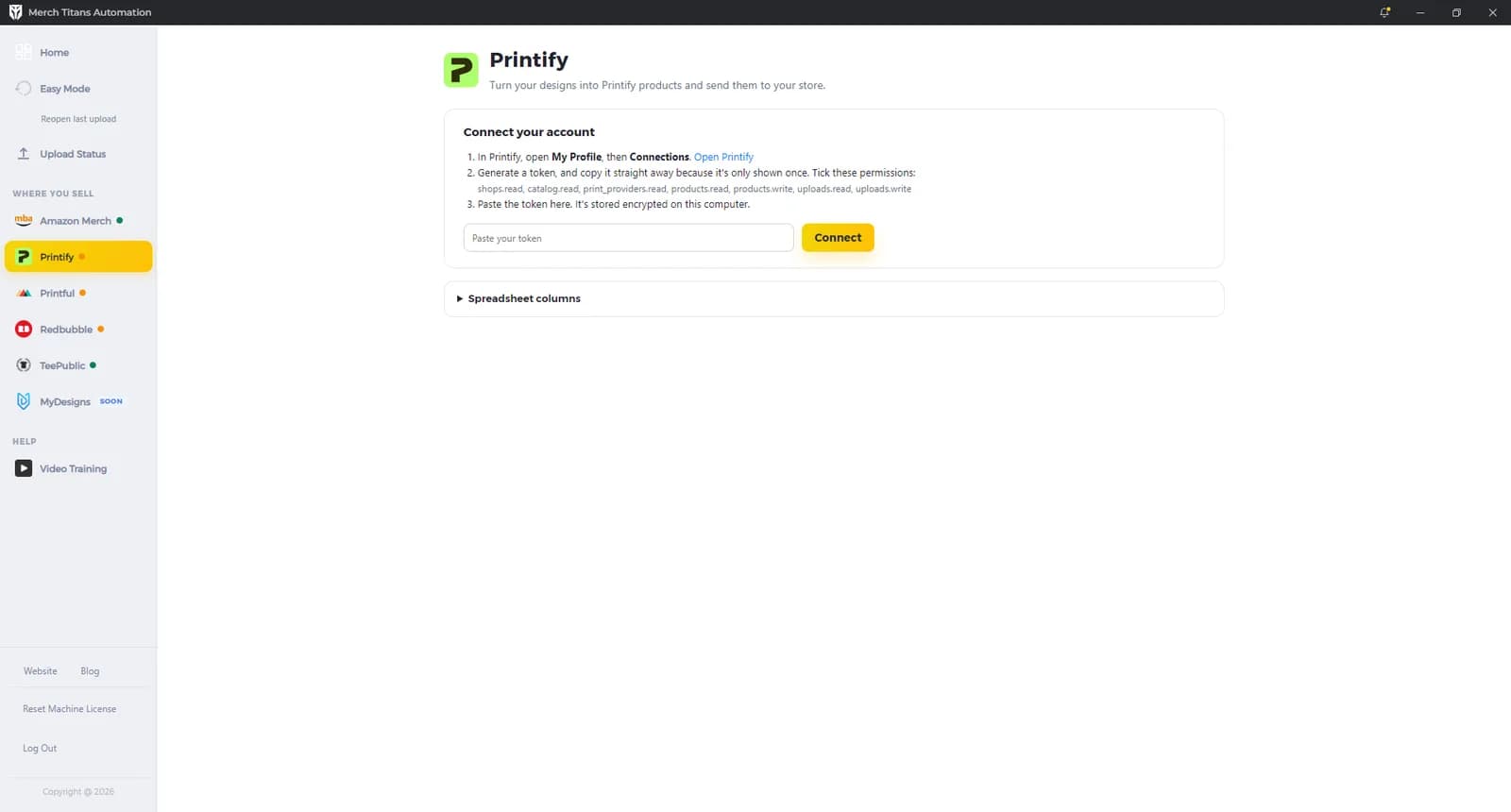
The Connect your account card lists three steps:
- "In Printify, open My Profile, then Connections." The Open Printify link opens Printify's API page in your browser.
- "Generate a token, and copy it straight away because it's only shown once. Tick these permissions:" shops.read, catalog.read, print_providers.read, products.read, products.write, uploads.read, uploads.write.
- "Paste the token here. It's stored encrypted on this computer."
Paste the token in Paste your token and click Connect (or press Enter). The app checks the token with Printify and saves it only if Printify accepts it. The token is never written into a settings backup file.
Once connected, the Your store card has three buttons:
- Refresh reloads your stores from Printify.
- Replace token lets you paste a new token. "Your upload history is kept, so nothing gets made twice." If none of the new token's shops match the shops seen before, the app treats it as a different account and clears the history.
- Disconnect asks first: "This removes your token and upload history from this computer. Your products stay in Printify, but uploading the same designs afterwards will make new ones. To change tokens and keep your history, use Replace token instead."
Logging out of Merch Titans with Log Out leaves your Printify token on this computer. To disconnect, click Disconnect on the Printify page.
When your saved token is more than 350 days old, the page shows: "Your Printify token is nearly a year old and will stop working soon. Please generate a new one and use Replace token."
Settings on the Printify page
The cards below only appear once your account is connected.
Your store
Pick a store in the Store dropdown. Each option shows the store name and its sales channel. The same dropdown appears on Printify's card in Easy Mode's Where do you want to sell? step.
The note under the dropdown depends on the store:
- Etsy: "Drafts appear under Listings in Etsy's Shop Manager."
- A store with no sales channel: "This store isn't connected to a sales channel, so products will stay in Printify."
- A store on your own integration: "This store publishes through your own integration, so products will stay in Printify."
For the last two, and when no store is chosen, only Create in Printify only is available. To add a store, follow the link "Need another store? Connect it in Printify, then press Refresh."
Products
"Each design you upload is made into every product listed here." Click Add a product to open the catalog.
- With an empty search, Popular shows Bella+Canvas 3001, Gildan 5000, Gildan 64000, Next Level 3600, Gildan 18500 and Gildan 18000.
- Search with words like "hoodie", "mug" or "Gildan 5000". The first 60 matches are shown.
- Print provider: each option shows the provider's country and about how many days it takes to make, when Printify gives those details.
- Colors and sizes are chips with All and None links. Black and white in every size are selected to start, when the product has them. The count reads "N combinations chosen", and Printify allows up to 100 per product.
- Print position appears when a product has more than one. It starts on the front.
- Price: Profit per sale (default, $8.00 to start) or Fixed price ($24.99 when you switch). The minimum is $1.00.
- Profit per sale: "Added to Printify's cost for each size, then rounded up to .99. Your store's own fees come out of this."
- Fixed price: "One price for everything. Check it's above Printify's cost for the largest size, or the product won't be sent to your store."
- Click Save product, or Back to cancel.
Saved products can't be edited. To change one, click Remove and add it again.
When you upload
| Option | What the page says | Upload screen label | After upload |
|---|---|---|---|
| Create in Printify only (default) | "Nothing goes to your store until you're ready." | Create | Created |
| Send to my store as a draft | "On Etsy it's saved as a draft for you to review and publish. Other stores keep it hidden from shoppers." | Send draft | Already sent |
| Publish live | "Listings go on sale straight away. Etsy charges a fee for each one." | Publish | Already sent |
Selling to the EU? is a collapsed section: "The EU's product safety rules (GPSR) ask for a contact and safety details on listings. Add yours here and they go on every product you create. Leave this blank if you don't sell there." It has one box for your GPSR information (name, email and address) and warnings.
Spreadsheet columns
"Only needed for spreadsheets you upload yourself. Easy Mode sets these for you." Column A is always the design's file path.
| Field | Default column |
|---|---|
| Title | B |
| Description | C |
| Tags | D |
| Brand (Amazon stores) | F |
| Bullet 1 (Amazon stores) | G |
| Bullet 2 (Amazon stores) | H |
The brand and bullets are only sent when your Printify store sells on Amazon. See Spreadsheet upload.
What happens during an upload
- Checks first. Every listing needs a title and description, and the title must fit your store's limit. Your account must be connected, with a store and at least one product.
- A confirmation for big or live uploads. With Publish live, or more than 200 products in one upload, the app asks "Send to your store?" with Cancel and Continue. It says how many listings go to which store. For Etsy publishes it adds "Etsy charges a fee for each listing it publishes." Over 200 products it adds "Printify allows 200 every 30 minutes, so this takes about N minutes. Keep the app open."
- Four listings at once. Each design file is uploaded to Printify once, then made into every saved product.
- Placement. The design is centered and scaled to the largest size that fits the print area. There is no placement setting.
- Pricing. With Profit per sale, the price for each size is Printify's cost plus your profit, rounded up to .99. The first time the app makes a product with a given print provider, it creates it at a placeholder of $99.99, reads Printify's costs, then corrects the prices. A price at or below cost leaves the product unpublished in Printify.
- Sending to your store. For drafts and live listings, the app checks every 15 seconds until Printify confirms, for up to 15 minutes.
- Links. Etsy drafts get a Review draft link to your Etsy Listings page. Other listings get View listing when Printify gives a link. Rows made with Create in Printify only get no link; find them in Printify.
- Row labels. "Creating", "Sending" or "Publishing" while working, then "Created", "Sent as draft" or "Published".
- At the end: "Printify: N of N listings finished."
Limits
- Design files: PNG or JPG.
- Resolution: the design must be big enough for the print area. The app checks it at upload and names the minimum width in pixels if it's too small.
- Colors and sizes: up to 100 combinations per product. Combinations that are out of stock are left out.
- Price: at least $1.00, and above Printify's cost for every size.
- Title: your store's limit, checked before the upload. Etsy titles can be up to 140 characters. In Easy Mode, if you also upload to other marketplaces, titles stay within 60 characters because they're shared.
- Description: required.
- Tags: your store's tag rules. Etsy allows 13 tags of up to 20 characters. Longer tags are left out, not shortened, and the app tells you at the end of the run.
- Rate limits: if Printify's limit is still reached after retries, the upload stops with a message. Finished listings aren't repeated when you run it again.
Running the same listings again
A listing sent as a draft can't then be published live from the app, and the reverse. The row fails with a message telling you to finish it in your store.
Troubleshooting
- "Please paste your Printify token first.": paste the token before you click Connect.
- "Printify didn't accept your token. Please paste a new one in the Printify settings.": generate a new token in Printify and paste it.
- "Your Printify token doesn't have permission for this. Please create one with all the listed permissions and reconnect.": create a token with all seven permissions and use Replace token.
- "Printify stopped accepting your saved token. Paste a new one below. Your upload history is kept, so nothing gets made twice.": generate a new token and paste it in the box shown.
- "Connect your Printify account", "Choose a store" or "Add a product" in "Please fix these settings": finish that step on the Printify page.
- "can't be published to from here, so choose Create in Printify only" after your store's name: your store has no sales channel the app can send to. Choose Create in Printify only.
- "Title is over the N character limit for" your store type: shorten the title and try again.
- "Printify only takes PNG and JPG designs" followed by the file name: save the design as PNG or JPG.
- "This design is" followed by its size, then "too small to print well here. It needs to be at least N pixels wide.": use a larger design file.
- "The price of" followed by "isn't above Printify's cost": raise your price or profit for that product.
- "has none of your chosen colours and sizes in stock." after a product name: remove the product and add it again with other colors or sizes, or another print provider.
- "This is already live in your store, so it can't be sent as a draft." or "This was already sent as a draft. Please publish it from your store.": finish that listing in your store.
- "Printify couldn't send this to your store. Open it in Printify to see why.": open the product in Printify and check its details.
- "Printify hasn't finished after 15 minutes. Check it in Printify. Running this again won't make a duplicate.": check the product in Printify, then run it again if needed.
- "Printify says this account has reached a plan limit.": check your Printify plan.
- "Printify's limit has been reached, which may be its daily product limit. Please run this again later. Finished listings won't be repeated.": wait, then start the upload again.
- "Printify took too long to respond." or "Printify couldn't be reached": check your connection and try again.
For errors that apply to every marketplace, see Troubleshooting. To upload with the guided flow, see Easy Mode; to upload from an XLSX file, see Spreadsheet upload. Follow progress on Upload Status.
Questions
Does Printify open a browser window during uploads?
No. Printify uploads go through Printify's API using your token, so no browser window opens and there is nothing to sign in to.
Can Merch Titans create Printify products without publishing them?
Yes. Create in Printify only, the default, keeps products in Printify. Send to my store as a draft sends them to your store as a draft or hidden from shoppers. Publish live puts them on sale straight away.
Will running the same listings twice make duplicate Printify products?
No. Merch Titans keeps a record of what it made in Printify for 180 days and doesn't make the same product twice. Disconnect clears that record, so uploads after a disconnect make new products.
Why can I only choose Create in Printify only for my store?
The store isn't connected to a sales channel, or it publishes through your own integration, so products stay in Printify. The draft and publish choices only work for stores the app can send to.
What do I do when my Printify token gets old?
When the token is nearly a year old, the Printify page warns you. Generate a new token in Printify and click Replace token, which keeps your upload history.