Upload Status: Track Uploads and Retry Failed Listings
Upload Status lists each upload you start in the current session, newest first, with a count and a progress bar. Click Manage Uploads to see every listing's status, then press Only unfinished and Start upload to retry anything that didn't finish.
Updated 2026-11-06 · Markdown
Steps
- 1
Open Upload Status
Click Upload Status in the sidebar after you start an upload.
- 2
Find your upload
Each upload shows its spreadsheet name, the number of listings uploaded out of the total, and a progress bar. Easy Mode uploads are named easy-mode-designs.
- 3
Open the listings
Click Manage Uploads to open the upload screen for that upload.
- 4
Check each listing
Finished listings have a green border. Failed ones say Failed, with a red border and the reason beside them.
- 5
Tick what's left
Press Only unfinished to tick every listing that hasn't finished, including the failed ones.
- 6
Retry
Press Start upload to try those listings again.
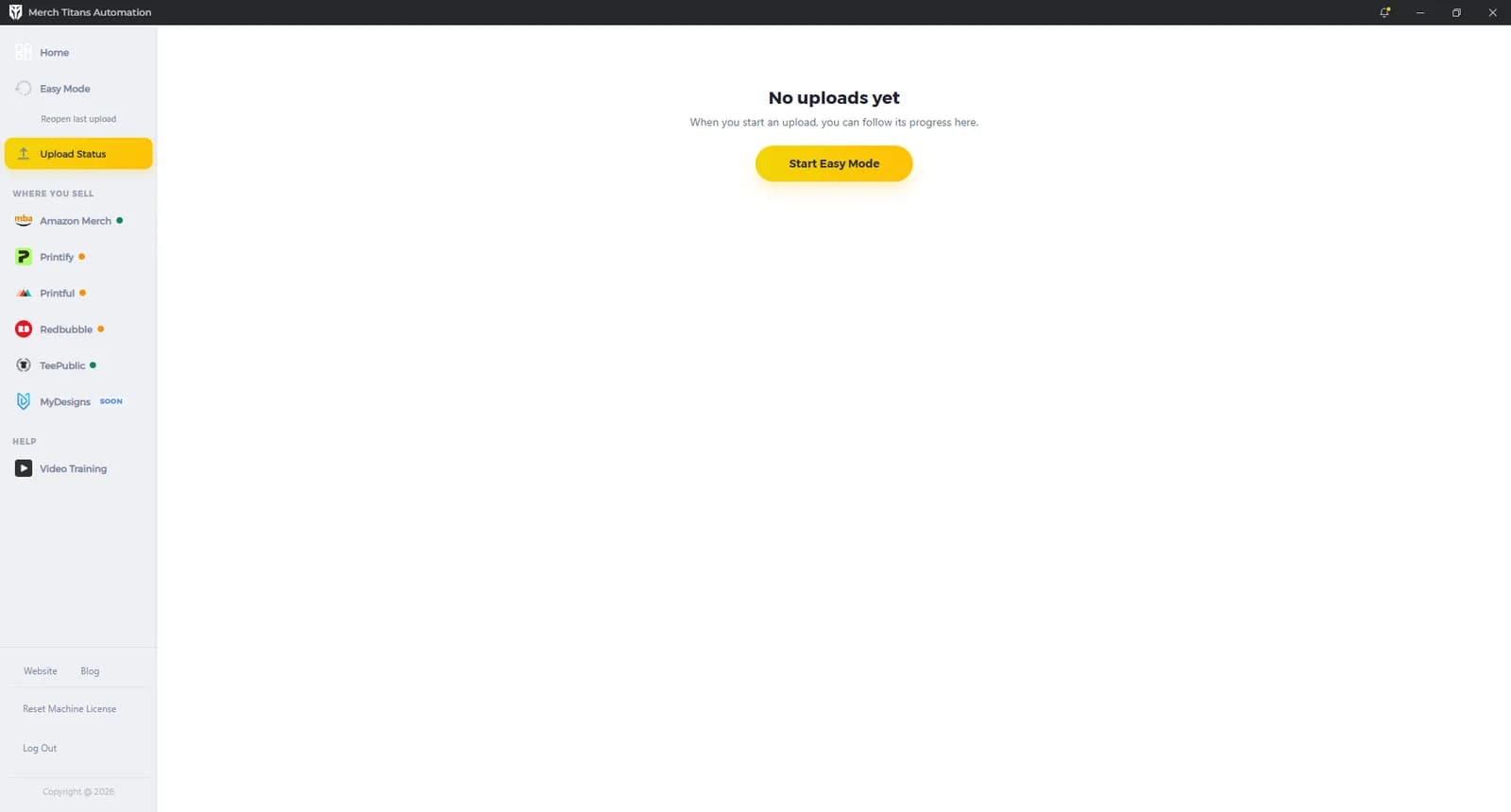
What Upload Status shows
Before your first upload, the page says "No uploads yet" and "When you start an upload, you can follow its progress here.", with a Start Easy Mode button.
Each upload you start gets a box, newest first, with:
- the spreadsheet name, up to 25 characters. Easy Mode uploads start with
easy-mode-designs; - a Manage Uploads link;
- the count of listings uploaded out of the total;
- a progress bar;
- an icon for each marketplace that started.
How the count works
The uploaded number goes up by one each time a listing finishes. The total is the number of rows in your sheet times the number of marketplaces that were switched on when you loaded it. Listings you didn't tick, and marketplaces skipped because nothing was ticked, still count in the total, so a finished upload can stay below 100%.
Each listing's status
Upload Status shows totals only. To see each listing, click Manage Uploads. That opens the upload screen for the upload, and its rows update live while that screen is showing.
| The row shows | Meaning |
|---|---|
| "Publishing", or the marketplace's own word such as "Creating" or "Sending" | Working on it |
| The finished label, such as "Published" or "Already sent", with a green border | Done |
| "Failed", with a red border and the reason beside it | Not uploaded |
Finished rows can have a link, such as "View on Redbubble", "View listing" or "Review draft".
Each failure also pops up a message such as "Listing 3 was not uploaded." followed by the reason.
A listing that takes longer than 20 minutes is skipped with "This listing took over 20 minutes, so it was skipped." The upload carries on with the next listing in a fresh tab. This limit applies to Amazon Merch, Redbubble, TeePublic and Printful. Printify has its own time limits.
When Printify or Printful finishes, it tells you how many listings finished, for example "Printful: 9 of 10 listings finished." Printful, Printify, Redbubble and TeePublic also tell you when they shortened tags or descriptions.
If a whole marketplace stops, a window titled with the marketplace's name and "upload stopped" gives the reason, for example "The upload browser was closed, so the upload stopped." The other marketplaces keep going.
For what specific errors mean, see Troubleshooting.
Retry failed listings
There's no separate retry button. Open the upload with Manage Uploads, press Only unfinished, then press Start upload. Only unfinished ticks every listing and then unticks the finished ones, so failed listings end up ticked.
Each Start upload runs the full set of checks again, including the license check. See Spreadsheet upload.
After you close the app
Upload Status starts empty each time you open Merch Titans. Two things are kept:
- A record of listings posted in the last 180 days, for each marketplace. When you load the same sheet again, those listings start unticked, matched on the image file name and all the text. Amazon Merch listings saved as drafts aren't added to this record.
- Printify and Printful's own progress, so they don't repeat work already done.
Reopen last upload
Reopen last upload in the sidebar ("Reopen your last Easy Mode upload") takes you back to your latest Easy Mode upload:
- If Upload Status has an Easy Mode upload, it opens that upload's screen.
- Otherwise it reloads your last Easy Mode upload list, with the listings that already finished marked as done. This works after a restart too.
- If you have designs open in Easy Mode, it first asks "Replace your current designs?" with "Reopening your last upload replaces the designs you're working on now." Click Reopen to go ahead or Keep working to stay.
- If it can't, you'll see "Unable to restore latest Easy Mode queue."
It only covers Easy Mode uploads. For a spreadsheet upload, load the sheet again with Upload spreadsheet on Home.
Questions
Is there a Retry failed button?
No. Click Manage Uploads on the upload, press Only unfinished to tick everything that didn't finish, then press Start upload.
Why does a finished upload show less than 100%?
The total counts every row in your sheet for every marketplace that was switched on, including listings you didn't tick. Click Manage Uploads to check each listing's status.
Is my upload history kept after I close the app?
No. Upload Status starts empty each time you open the app. Merch Titans does remember listings posted in the last 180 days, so they start unticked when you load the same sheet again.
Why was a listing skipped?
A listing that takes over 20 minutes is skipped so the rest of the upload can carry on. Retry it later with Only unfinished.
How do I get back to my last Easy Mode upload?
Click Reopen last upload in the sidebar. It opens the upload screen for your latest Easy Mode upload, even after you restart the app.