MyDesigns: Import Your Listings Into Merch Titans
You can import listings you built in MyDesigns into Merch Titans today: paste a MyDesigns personal access token, pick a folder and image slot, and the listings load like a spreadsheet, ready to upload to Amazon Merch, Printify, Printful, Redbubble and TeePublic. Sending what you make in Merch Titans to MyDesigns is coming soon.
Updated 2026-11-06 · Markdown
Steps
- 1
Create a MyDesigns token
In MyDesigns, create a personal access token on the Personal access tokens page in your settings.
- 2
Choose where to sell
On Home in Merch Titans, turn on the marketplaces you want under Where you sell.
- 3
Open the import
Click Upload spreadsheet on Home, then Import from MyDesigns.
- 4
Paste your token
In the Enter MyDesigns Token dialog, paste your token and click Continue.
- 5
Pick a folder and image slot
For the folder you want, choose the Image Slot that holds your designs, then click Select.
- 6
Check the column matches
Click OK on the Important message. If a marketplace's fields don't line up, fix them under Spreadsheet columns on that marketplace's page.
- 7
Check the preview
Check the listings in the preview on the spreadsheet screen and click Continue.
- 8
Start the upload
Tick the listings you want and press Start upload. Each design is downloaded from MyDesigns as its listing uploads.
What works today and what's coming
MyDesigns in the sidebar has a Soon label, and its page shows what's available now and what's coming soon.
- Available now: Import from MyDesigns. "Already building listings in MyDesigns? Bring them into Merch Titans and upload them to Amazon Merch, Redbubble, TeePublic, Printful and Printify."
- Coming soon: Send to MyDesigns and Publish to your stores. The page says: "Soon you'll also be able to send what you make here to MyDesigns, and publish it from there to every store you've connected." and "We'll let you know in the app as soon as it's ready. Nothing changes for the uploads you do today."
Getting a token
You need a MyDesigns personal access token. Create one in MyDesigns at mydesigns.io/app/settings/personal-access-tokens. The Create your token button on the MyDesigns page and the Create one in MyDesigns link in the import dialog open the same page.
Importing your listings
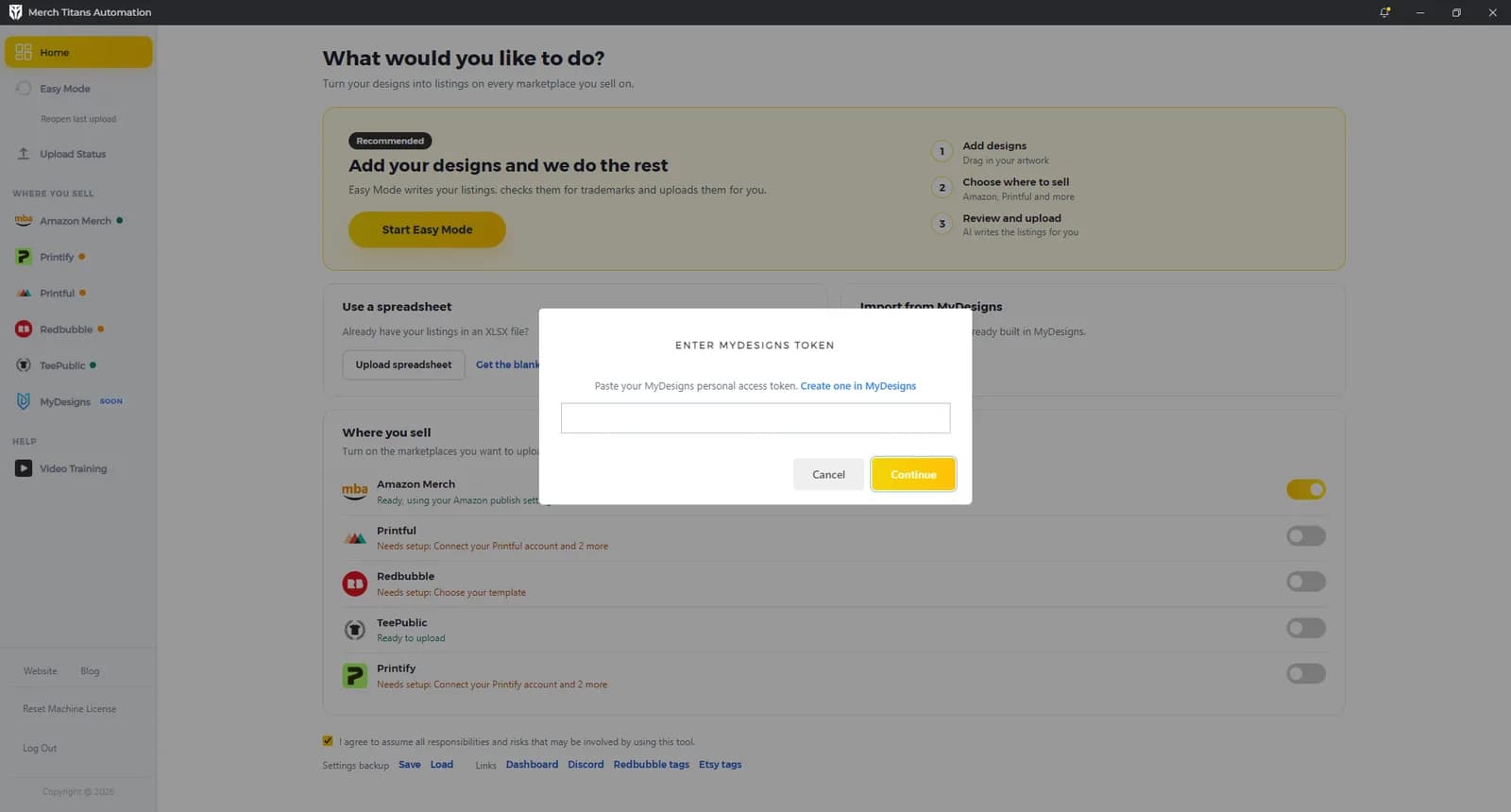
Before you import, turn on the marketplaces you want under Where you sell on Home. Then click Upload spreadsheet on Home and Import from MyDesigns on the spreadsheet screen. The preview of your listings appears on that screen. Import listings on Home's Import from MyDesigns card and on the MyDesigns page open the same token dialog.
The token dialog
The Enter MyDesigns Token dialog says "Paste your MyDesigns personal access token." Paste it and click Continue.
- The app checks the token with MyDesigns and saves it, encrypted on this computer, only if MyDesigns accepts it.
- Next time, the box is already filled in with your saved token.
- Log Out in the sidebar deletes the saved token.
Choosing a folder
The Select MyDesigns folder you want to use dialog lists your folders with the columns Folder Name, Image Slot and Select.
- Only folders with at least one design are listed. Each shows its parent folder, its name and how many designs it holds.
- For the folder you want, pick the Image Slot that holds the design you want to upload, then click Select.
- The dialog only closes with Select or Cancel.
Checking the columns
MyDesigns sends the folder as a spreadsheet, one row per listing, and Merch Titans shows it in the spreadsheet preview. Then an Important message asks you to check that the MyDesigns fields are matched to each marketplace's fields. Click OK.
The app tries to match columns whose names contain "Title", "Description", "Tags", "Main Tag", "Brand", "Bullet 1" and "Bullet 2". Check them under Spreadsheet columns on each marketplace page you upload to. The message calls this "the advanced settings section"; on the marketplace pages it's now named Spreadsheet columns.
Uploading
Check the preview, click Continue, tick the listings and press Start upload. The marketplaces on the upload screen are the ones switched on under Where you sell when you click Continue. From here it works like any spreadsheet upload.
Designs aren't downloaded when you import. Each one is fetched from MyDesigns when its listing uploads, so stay connected during the upload.
Troubleshooting
- "Error! Please enter correct token": MyDesigns didn't accept the token, or couldn't be reached. Check your connection, copy the whole token again, or create a new one.
- "MyDesigns import failed:" followed by a reason, such as "MyDesigns couldn't export this folder" with a status number: try the import again, or choose another folder.
- "Error! The following MyDesigns listings do not have an image in the selected slot" followed by the slot name: import again with another Image Slot, or add an image in that slot in MyDesigns.
- "MyDesigns couldn't find an image" with a status number, on a listing: check the design still exists in MyDesigns, then try that listing again.
- "MyDesigns returned an image link that isn't secure.": try that listing again later.
- "A MyDesigns image couldn't be downloaded" with a status number: check your connection and try that listing again.
- A folder is missing from the list: only folders with at least one design are shown.
For errors that apply to every marketplace, see Troubleshooting. To upload your own designs with the guided flow, see Easy Mode; for spreadsheet columns and rules, see Spreadsheet upload.
Questions
Can I send products from Merch Titans to MyDesigns?
Not yet. Sending your Merch Titans listings to MyDesigns, and publishing them from there to your stores, are coming soon. Importing listings from MyDesigns works today.
Where do I get a MyDesigns personal access token?
In MyDesigns, at mydesigns.io/app/settings/personal-access-tokens. The Create one in MyDesigns link in the import dialog opens the same page.
Do I need to import again after restarting Merch Titans?
Yes. An imported MyDesigns sheet lasts for the current session only, so import it again each time you open the app.
Which marketplaces can I upload imported MyDesigns listings to?
Amazon Merch, Printify, Printful, Redbubble and TeePublic. Turn on the ones you want under Where you sell on Home before you click Continue.