Merch Titans App Tour: Sidebar, Home Page and What's New Bell
The Merch Titans window has a title bar with the What's new bell, a sidebar on the left and the page you picked on the right. The sidebar opens Home, Easy Mode, Upload Status, a settings page for each marketplace, MyDesigns and Video Training, with Reset Machine License and Log Out at the bottom.
Updated 2026-11-06 · Markdown
The title bar
The dark bar across the top of the window shows the Merch Titans logo and "Merch Titans Automation" on the left. On the right, in order:
- The bell, What's new.
- Minimize.
- Maximize, which becomes Restore when the window is maximized.
- Close, which quits the app.
The window opens maximized. On a Mac, the menu bar at the top of the screen is named "Merch Titans Automation".
The What's new bell
The bell shows what changed in the app. A yellow dot on it means there is a release you haven't opened yet on this computer. Click the bell to open a menu with two items:
- Recent updates, "What changed in the latest updates": the newest 3 releases, each with its date, title and a short list of changes. If there are more, See the full changelog appears at the end.
- Changelog, "Every update so far": every release.
Both open inside the app. To close the panel, click the × button, click outside it or press Esc. The bell reads the list fresh each time you open it. If it can't, it says "Updates couldn't be loaded. Please check your connection and try again."
The same notes are on the website at merchtitans.com/docs/changelog. See Updates for how new versions reach you.
The sidebar
From top to bottom:
| Item | What it opens |
|---|---|
| Home | The Home page, "What would you like to do?" (below). |
| Easy Mode | The three-step guided upload. See Easy Mode. |
| Reopen last upload (a link under Easy Mode) | The upload screen for your last Easy Mode upload. |
| Upload Status | The progress of your uploads. See Upload Status. |
| Amazon Merch | Amazon Merch settings. See Amazon Merch. |
| Printify | Printify settings. See Printify. |
| Printful | Printful settings. See Printful. |
| Redbubble | Redbubble settings. See Redbubble. |
| TeePublic | TeePublic settings. See TeePublic. |
| MyDesigns, with a Soon label | The MyDesigns page. See MyDesigns. |
| Video Training | Short video walkthroughs (below). |
The marketplaces sit under the label "Where you sell", and Video Training under "Help". At the bottom of the sidebar:
- Website opens merchtitans.com in your browser.
- Blog opens the Merch Titans blog in your browser.
- Reset Machine License frees a computer from your subscription. See License and computers.
- Log Out signs you out of the app. See Sign in.
Status dots
Each marketplace in the sidebar, except MyDesigns, has a dot. Hover over it to see "Ready to upload" (green) or "Needs setup" (orange). The dot only checks that the marketplace's settings are filled in. It doesn't check that you're signed in to that marketplace.
Reopen last upload
Reopen last upload takes you back to the upload screen of your last Easy Mode upload, so you can see its listings or upload the unfinished ones again. If you have designs open in Easy Mode, it may first ask "Replace your current designs?" ("Reopening your last upload replaces the designs you're working on now."). Click Keep working to stay, or Reopen to go ahead. The link is hidden when the window is narrow.
The Home page
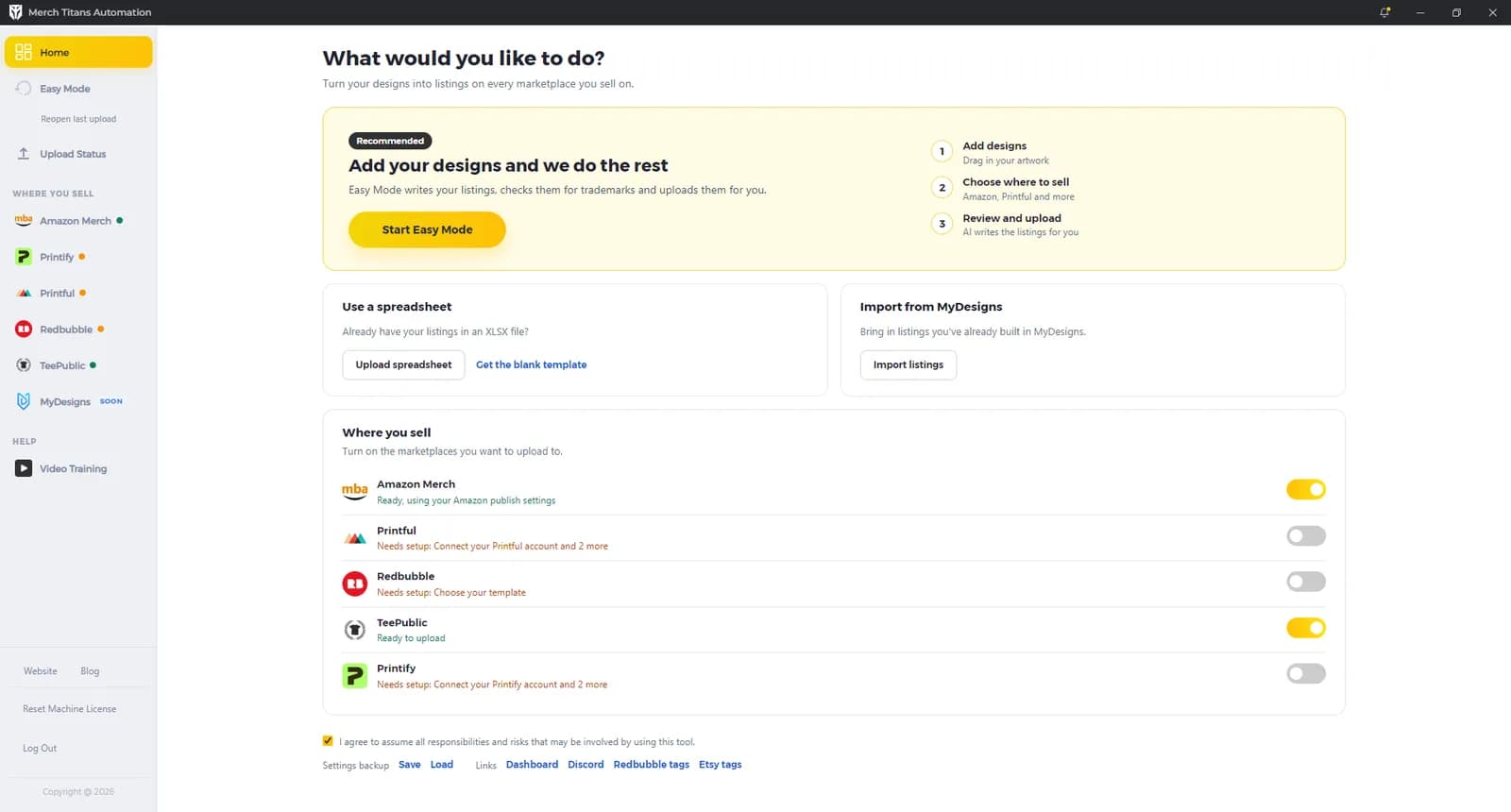
Home opens with "What would you like to do?" and "Turn your designs into listings on every marketplace you sell on." It has three ways to start:
- Recommended: "Add your designs and we do the rest" and "Easy Mode writes your listings, checks them for trademarks and uploads them for you." Click Start Easy Mode. The card shows the three steps: "Add designs", "Choose where to sell" and "Review and upload". See Easy Mode.
- Use a spreadsheet: "Already have your listings in an XLSX file?" Click Upload spreadsheet, or Get the blank template to save an empty layout.xlsx. See Spreadsheet upload.
- Import from MyDesigns: "Bring in listings you've already built in MyDesigns." See MyDesigns for the import steps.
Below them:
- Where you sell: "Turn on the marketplaces you want to upload to." A switch for each of Amazon Merch, Printful, Redbubble, TeePublic and Printify, each with a status line such as "Ready to upload", "Ready, using your Amazon publish settings", "Ready, using products chosen here", or "Needs setup:" followed by the first missing setting. When the app opens, it switches off any marketplace whose settings aren't complete; switch it back on here once it's set up.
- The agreement box: "I agree to assume all responsibilities and risks that may be involved by using this tool.", ticked by default.
- Settings backup: Save and Load a .mtasettings file. See Save and load settings.
- Links: Dashboard (your merchtitans.com dashboard), Discord, and the free Redbubble tags and Etsy tags tools on merchtitans.com.
Video Training
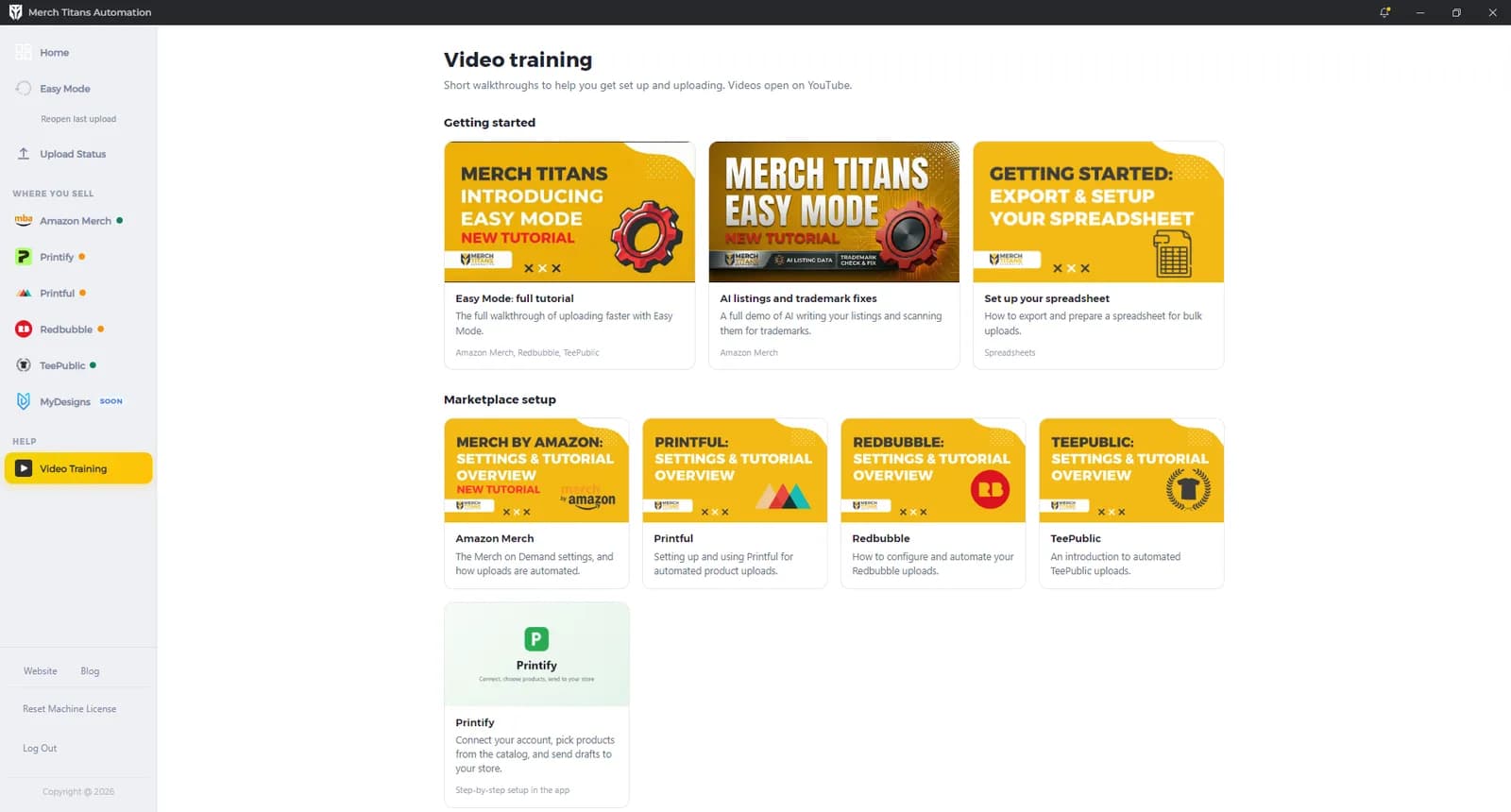
Video Training has "Short walkthroughs to help you get set up and uploading. Videos open on YouTube."
- Getting started: "Easy Mode: full tutorial", "AI listings and trademark fixes" and "Set up your spreadsheet".
- Marketplace setup: videos for Amazon Merch, Printful, Redbubble and TeePublic. The Printify card isn't a video: it opens the Printify page in the app, "Step-by-step setup in the app".
Video tutorials are also on the website at merchtitans.com/tutorials.
Questions
What does the yellow dot on the bell mean?
There is a new release you haven't opened yet on this computer. Click the bell and choose Recent updates to see what changed.
Why does a marketplace say Needs setup?
Some of its settings are missing. Open the marketplace in the sidebar and fill in what Home lists after Needs setup. The status only checks settings, not whether you're signed in to that marketplace.
Where are the video tutorials?
Click Video Training in the sidebar. The videos open on YouTube. Video tutorials are also on the website at merchtitans.com/tutorials.
Why is MyDesigns marked Soon?
Sending products to MyDesigns is coming soon. Importing your listings from MyDesigns works today: click Upload spreadsheet on Home, then Import from MyDesigns.