Spreadsheet Upload: Bulk Upload Listings from an XLSX File
To bulk upload from a spreadsheet, click Get the blank template on Home, put each design's full file path in column A and its listing text in the columns after it, then click Upload spreadsheet, choose the file and press Continue. On the upload screen, tick the listings you want and press Start upload.
Updated 2026-11-06 · Markdown
Steps
- 1
Get the template
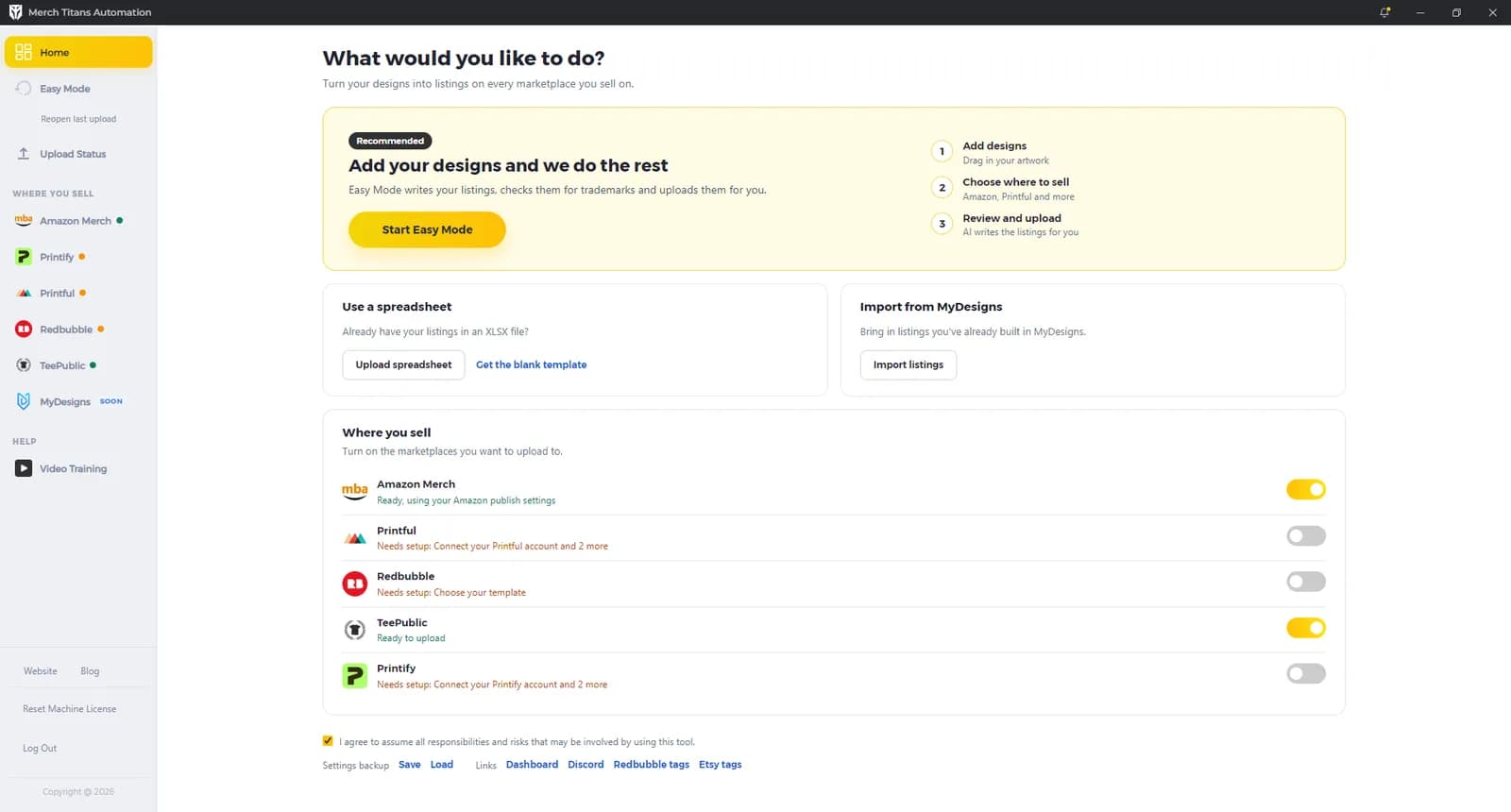
On Home, under Use a spreadsheet, click Get the blank template and save layout.xlsx.
- 2
Add one row per design
Put the full path to each design file on this computer in column A, and its title, description, tags and other text in the columns after it.
- 3
Match your columns
If your columns are in a different order from the template, set the letters under Spreadsheet columns on each marketplace page.
- 4
Turn on your marketplaces
On Home, under Where you sell, turn on each marketplace you want to upload to.
- 5
Load the sheet
Click Upload spreadsheet on Home, then Choose spreadsheet, and pick your file.
- 6
Check the preview
Check the table, then click Continue under Does this look right?
- 7
Tick the listings
On the upload screen, tick the listings you want for each marketplace.
- 8
Press Start upload
Press Start upload. If the app lists rows or settings to fix, fix them and press Start upload again.
The blank template
Get the blank template under Use a spreadsheet on Home saves a file called layout.xlsx. It has one sheet, "Merch Titans Automation", with a header row and nothing else. You'll see "Layout exported successfully", or "Unable to export layout" if it couldn't be saved.
| Column | Header | What goes in it | Used by |
|---|---|---|---|
| A | Image Path | The full path to the design file on this computer | Every marketplace |
| B | Title | The listing title | Every marketplace |
| C | Description | The listing description | Every marketplace |
| D | Tags | Tags, separated by commas | Printify, Printful, Redbubble, TeePublic |
| E | Primary Tag for TeePublic | TeePublic's main tag | TeePublic |
| F | Amazon Merch Brand | The brand name | Amazon Merch, and Printify stores on Amazon |
| G | Amazon Merch Bullet #1 | The first bullet | Amazon Merch, and Printify stores on Amazon |
| H | Amazon Merch Bullet #2 | The second bullet | Amazon Merch, and Printify stores on Amazon |
These are also the default column letters under Spreadsheet columns on each marketplace page, so if you keep the template's order you don't need to change anything there. If your sheet uses a different order, set the letters on each marketplace page: Amazon Merch, Printify, Printful, Redbubble and TeePublic.
Spreadsheet rules
- Only the first sheet is read. Put your listings on the first tab.
- One row per design. Empty rows, and rows with nothing in column A, are skipped.
- Column A is always the image path. It must be the full path to a file on this computer.
- A network location, starting with
\\or//, doesn't work: "Image Path "..." is on a network location. Please copy the image to this computer." - The file must end in png, jpg, jpeg, gif, webp, bmp, tif or tiff. Otherwise: "Image Path "..." isn't an image file."
- The file must exist. Otherwise: "Image Path "..." doesn't exist."
- These messages show in a window titled "Error", with your path in place of the dots.
- A network location, starting with
- Each marketplace takes fewer file types. Printify and Printful take only PNG and JPG.
- The header row is optional. Row 1 counts as headers when its column A cell is a name rather than a file path. Without headers, the preview names the columns "Column A", "Column B" and so on.
- Use an .xlsx file of 50 MB or less. A bigger file gives "That spreadsheet is over 50 MB. Please use a smaller file." Another file type gives "The format of the file you have selected is not supported. Please select a valid Excel file ('.xls, *.xlsx')."
Load and preview the sheet
Upload spreadsheet on Home opens the spreadsheet screen, with Choose spreadsheet and Import from MyDesigns (see MyDesigns). Once you've chosen a file, the button changes to ✓ Upload new XLSX, so you can pick a different one.
Your sheet shows as a table. Below it, Does this look right? has a Continue button. While Merch Titans checks the image paths, the button reads "Preparing preview...". Then the upload screen opens.
| Message | What to do |
|---|---|
| "Please choose an XLSX file or use Easy Mode!" | Choose a file first. |
| "Excel file is empty or contains invalid data." | Check the first sheet has your rows. |
| "That spreadsheet couldn't be opened:" followed by a reason | Check the file opens in your spreadsheet app, save it as .xlsx and try again. |
| An image path message (see above) | Fix the path in column A and load the sheet again. |
Which marketplaces you'll see
The upload screen shows the marketplaces that are switched on under Where you sell on Home when you press Continue. When Merch Titans starts, it switches off any marketplace whose settings aren't complete. Finish its settings, then switch it back on from Home.
Tick the listings
The top of the upload screen shows the spreadsheet's name, how many listings are selected out of the total, and "Tick the listings you want, then start the upload." It has these buttons:
- Select all ticks every listing.
- Clear all unticks every listing.
- Only unfinished ticks only the listings that haven't finished yet.
- Start upload starts the upload. It's greyed out while nothing is ticked.
Below that, each marketplace has its own section with its own count, Select all and Clear all. Each row shows a thumbnail, the row number from your sheet and the title (cut at 40 characters), or the file name if there's no title. The tick box says what will happen:
| Marketplace and setting | Before upload | After upload |
|---|---|---|
| Most marketplaces | "Publish" | "Published" |
| Amazon Merch, set to drafts | "Save draft" | "Already sent" |
| Printify, create only | "Create" | "Created" |
| Printify, draft | "Send draft" | "Already sent" |
| Printify, publish | "Publish" | "Already sent" |
| Printful, Etsy store | "Send draft" | "Already sent" |
| Redbubble, private | "Upload privately" | "Already uploaded" |
| TeePublic, save for later | "Save for later" | "Already saved" |
Listings that were already posted start unticked, with a green border and the after-upload label. A listing counts as posted if it was posted in this session, or if it's in Merch Titans' record of the last 180 days for that marketplace with the same image file name and text.
Back returns you to Home.
What happens when you press Start upload
Merch Titans runs these steps in order:
- If this upload is already running, you'll see "This upload is already running".
- It saves your current settings.
- It checks your license. On a computer that isn't activated yet, Select subscription to activate asks which subscription to use; pick it and click OK. Each subscription covers 2 computers. See License and computers.
- It adds the upload to Upload Status.
- It leaves out any marketplace with no ticked listings. That marketplace opens no browser and asks for no sign-in. If nothing is ticked anywhere, you'll see "Tick at least one listing, then start the upload."
- For a sheet imported from MyDesigns, it checks every listing has an image in the chosen slot. If not, you'll see "Error! The following MyDesigns listings do not have an image in the selected slot" with the slot name.
- It checks the rows for each marketplace that will run. Problems show in Please fix these spreadsheet rows, with the columns Platform, Row and What to fix. An empty required cell shows as the column and its letter, for example "Title column (Column B)". Each marketplace's own rules are on its page.
- It checks each marketplace's settings. Problems show in Please fix these settings, with the columns Platform and Setting.
- It starts the upload and shows "Launching the app". Each marketplace starts 2 seconds after the one before, in this order: Printful, TeePublic, Redbubble, Printify, Amazon Merch. Then they all run at the same time.
- If one marketplace stops, the others keep going. A window titled with the marketplace's name and "upload stopped" gives the reason, for example "The upload browser was closed, so the upload stopped."
These license messages stop the upload at step 3:
| Message | What it means |
|---|---|
| "No license found" | Your account has no active Merch Titans subscription. See pricing. |
| "All the licenses are already active on 2 machines" | Every subscription already has 2 computers. See License and computers. |
| "Your login has expired. Please log in again." | Merch Titans returns you to the login screen. Sign in and try again. |
| "The licence server couldn't be reached. Please check your connection and try again." | Check your internet connection and try again. |
Follow the upload
Open Upload Status to see progress, failed listings and how to retry them.
Questions
Where do I get the spreadsheet template?
On Home, under Use a spreadsheet, click Get the blank template. It saves layout.xlsx, an empty sheet with the column headers in the default order.
What goes in column A?
The full path to the design file on this computer. Network locations don't work, and the file must exist and end in an image extension such as png or jpg.
Does a spreadsheet upload check trademarks or banned words?
No. Spreadsheet uploads don't run the trademark check or any word filter. Use Check trademarks in Easy Mode if you want a check before you upload.
Do I need a header row?
No, the header row is optional. Without one, the preview names the columns Column A, Column B and so on, and the column letters on each marketplace page still apply.
Why is a listing unticked when I load my sheet?
It has already been posted to that marketplace, either in this session or in the last 180 days with the same image file name and text. Leave it unticked unless you want to post it again.